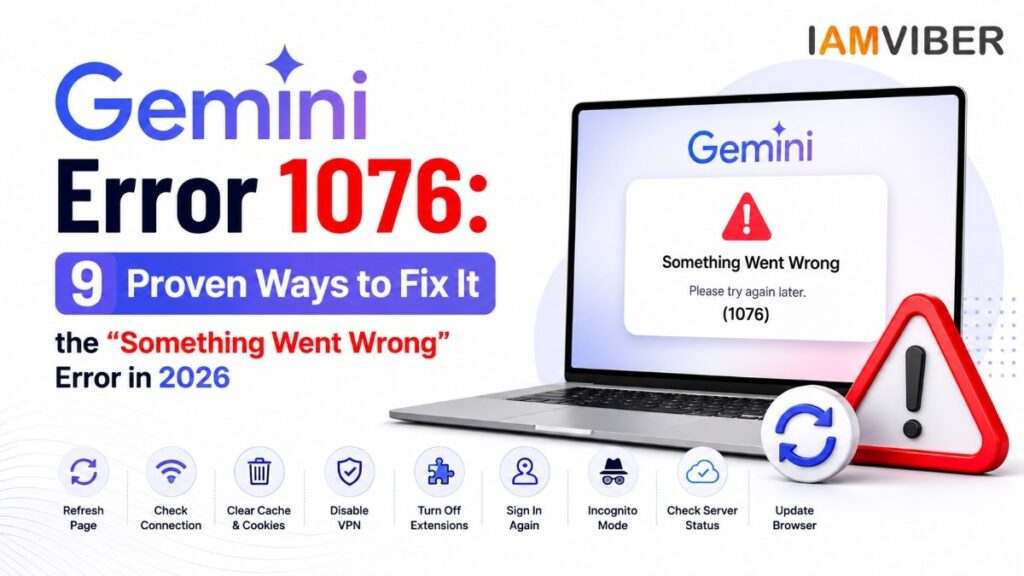
Have you recently encountered the Something Went Wrong (1076) error while using Google Gemini or another AI-powered service? You’re not alone. Thousands of users have reported this issue, and it can appear unexpectedly while generating responses, logging in, or processing requests.
The good news is that Something Went Wrong (1076) is usually temporary and can often be fixed in just a few minutes.
In this guide, we’ll explain what this error means, why it happens, and the 9 most effective ways to fix it.
What is Gemini Error 1076?
Gemini Error 1076 is a generic error displayed when Google Gemini cannot successfully process your request. Instead of completing your prompt, Gemini displays a message such as:
Something Went Wrong (1076)
The error doesn’t always specify the exact cause, making Gemini’s Error 1076 confusing for many users. However, in most situations, the issue is linked to browser problems, unstable internet connections, temporary server overload, expired login sessions, or conflicting browser extensions.
Fortunately, Gemini Error is rarely caused by account suspension or permanent data loss.
Why Does Gemini Error 1076 Occur?
Several technical factors may trigger Gemini Error . Some of the most common reasons include:
- Temporary Google server issues
- Slow or unstable internet connection
- Browser cache corruption
- VPN or proxy interference
- Expired Google account session
- Browser extensions blocking scripts
- API request timeout
- Excessive server traffic
- Browser compatibility problems
Understanding the actual reason behind 1076 Gemini Error makes troubleshooting much easier.
Signs You're Facing Gemini Error 1076
Users experiencing 1076 Gemini Error usually notice one or more of these symptoms:
- Gemini refuses to generate responses
- AI replies suddenly stop
- File uploads fail
- Chats don't load properly
- The page refreshes automatically
- "Something Went Wrong (1076)" repeatedly appears
- Continuous loading without any output
If you’re seeing these signs, follow the solutions below
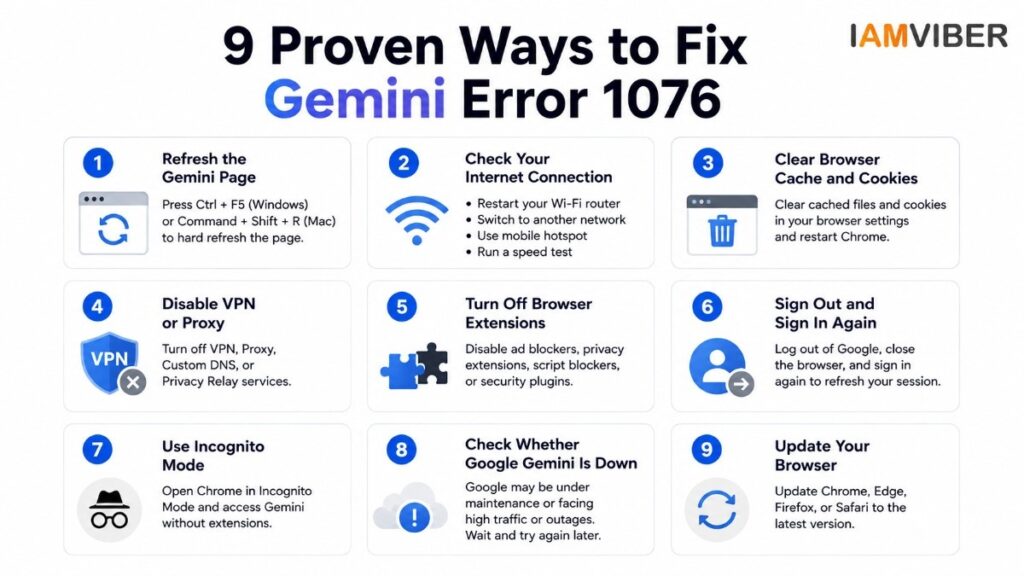
1. Refresh the Gemini Page
The easiest solution is simply refreshing your browser.
Use: Windows: Ctrl + F5
Mac: Command + Shift + R
This clears the temporary browser memory and reloads the latest version of Gemini. Many users report that Gemini Error 1076 disappears after a hard refresh.
2. Check Your Internet Connection
A weak internet connection is one of the biggest causes of Gemini Error 1076. Try the following:
- Restart your Wi-Fi router
- Switch to another network
- Use mobile hotspot
- Run an internet speed test
- Disable network restrictions
If your connection becomes stable, Gemini usually starts working normally again.
3. Clear Browser Cache and Cookies
Old browser files often interfere with Google services. For Google Chrome:
- Open Settings
- Privacy & Security
- Clear Browsing Data
- Select Cookies and Cached Images
- Restart Chrome
After clearing the cache, reopen Gemini and check if error 1076 gemini has disappeared.
4. Disable VPN or Proxy
Many VPN servers block or modify requests sent to Google’s servers. If you’re using:
- VPN
- Proxy
- Custom DNS
- Privacy Relay
temporarily disable them. Several users have fixed Gemini Error 1076 simply by turning off their VPN connection.
5. Turn Off Browser Extensions
Sometimes your Google authentication token expires. Simply:
Extensions can interfere with Gemini. Common examples include:
- Ad blockers
- Privacy extensions
- Script blockers
- Cookie managers
- Security plugins
Disable them one by one and reload Gemini. If the error disappears, you’ve found the conflicting extension.
6. Sign Out and Sign In Again
- Log out of Google
- Close your browser
- Reopen Chrome
- Log back into your Google account
This refreshes your session and often resolves Gemini Error 1076.
7. Use Incognito Mode
Incognito Mode disables most browser extensions and uses a fresh session. Open:
Chrome → New Incognito Window
Now access Gemini again. If everything works properly, the problem is likely related to browser cache or installed extensions rather than Gemini itself.
8. Check Whether Google Gemini Is Down
Sometimes the issue isn’t on your device.
Google may be experiencing:
- Server maintenance
- Infrastructure upgrades
- High traffic
- Temporary outages
If that’s the case, wait for a few minutes before trying again. Trying to repeatedly refresh the page during an outage usually won’t solve Gemini’s Error 1076.
9. Update Your Browser
Running an outdated browser may create compatibility issues. Update to the latest version of:
- Google Chrome
- Microsoft Edge
- Firefox
- Safari
Browser updates include important security fixes and compatibility improvements that help prevent errors.
Does Gemini's Error 1076 Affect Mobile Devices?
Yes. Android and iPhone users can also encounter Gemini’s Error 1076. Try these fixes:
- Force close Gemini
- Clear App Cache (Android)
- Restart your phone
- Update the Gemini app
These steps resolve most mobile-related issues.
How to Prevent Gemini Error 1076
Although occasional server problems cannot be avoided, you can reduce the chances of seeing Google Gemini Error Code 1076 by following these best practices.
- Keep Chrome updated
- Avoid unstable VPN servers
- Clear browser cache regularly
- Use a reliable internet connection
- Disable unnecessary extensions
- Log out after long inactive sessions
- Keep Google apps updated
- Avoid opening too many Gemini tabs simultaneously
Final Thoughts
Gemini Error 1076 can interrupt your workflow, but in most situations, it’s a temporary issue that can be resolved quickly. Whether the problem is caused by a weak internet connection, outdated browser, VPN, corrupted cache, or temporary Google server issues, the nine solutions shared above should help restore normal functionality.
If the error continues even after trying every fix, it’s worth checking for ongoing Google service outages or reaching out to official support. Keeping your browser updated, maintaining a stable internet connection, and avoiding conflicting browser extensions can significantly reduce the chances of encountering Gemini Error in the future.
Frequently Asked Questions (FAQs)
1. What is Gemini Error 1076?
Gemini Error 1076 is a temporary error message that appears when Google Gemini cannot process your request. It is commonly caused by server issues, browser cache, unstable internet, VPN conflicts, or expired login sessions.
2. Why does Gemini show "Something Went Wrong (1076)"?
The “Something Went Wrong (1076)” message usually appears because of temporary server overload, browser-related issues, poor internet connectivity, or authentication problems. In most cases, the issue is not permanent.
3. How can I fix Gemini Error 1076 quickly?
You can fix Gemini Error 1076 by:
- Refreshing the page
- Clearing browser cache and cookies
- Restarting your internet connection
- Disabling VPN or proxy
- Signing out and signing back into your Google account
- Updating your browser
4. Is Gemini Error 1076 caused by Google servers?
Yes, sometimes Gemini Error 1076 occurs because Google’s servers are experiencing high traffic, maintenance, or temporary outages. If that’s the case, waiting a few minutes and trying again usually resolves the issue.
5. Can browser extensions cause Gemini Error 1076?
Yes. Browser extensions such as ad blockers, privacy tools, script blockers, and security plugins can interfere with Google Gemini and trigger Gemini Error 1076. Disabling them temporarily can help identify the cause.
6. What industri6. Does Gemini Error 1076 affect mobile devices?es can benefit most from AI-powered cybersecurity?
Yes. Android and iPhone users can also experience Gemini Error 1076. Updating the Gemini app, clearing the app cache, restarting the device, or reinstalling the app often fixes the problem.
7. Is Gemini Error 1076 a permanent issue?
No. Gemini Error 1076 is generally a temporary issue and does not indicate that your Google account has been suspended or permanently affected. Most users can resolve it within a few minutes.
8. When should I contact Google Support for Gemini Error 1076?
If Gemini Error 1076 continues to appear after trying all recommended fixes across multiple browsers, devices, and internet connections for an extended period, you should contact Google Support or wait for an official service update.
Topics to follow on IAMVIEBR : Current Affairs & Insights Tech Innovation GenZ entrepreneurship Collaborative Fashion GEO SME