Messaging apps win when small actions feel effortless. In the latest Google Messages update, Google is changing exactly those small interactions: how users reply to a message, reveal message details, open long-press actions, and copy only the text they need.
The timing is also important. Google Messages, with related searches for reply gesture changes and the new copy feature reaching breakout status. That makes this Google Messages update a timely search topic for readers trying to understand what changed and how to use it.
What’s New in Google Messages?
The biggest changes are focused on conversation controls rather than a complete visual redesign. Users are seeing new swipe-based actions and a redesigned long-press menu rolling out across stable versions.
First, swipe right can be used to reply directly to a specific message. Swipe left can surface message information such as timestamps and encryption details. Android Authority reports that this interface is now rolling out more widely, while the exact availability can vary by account, app build, and server-side rollout.
Second, Google Messages is rolling out a new floating long-press menu. Instead of keeping the main actions in a toolbar at the top, the menu appears closer to the selected message. Current options include Reply, Forward, Copy, Star, Delete, Select more, Info, and media-specific actions such as Remix or Save. 9to5Google
The third major change is more precise copying. Google’s support documentation confirms that users can copy specific parts of a message, such as a phone number or one-time password, instead of copying the complete message.
Google Messages Reply Gesture Changes Explained
The Google Messages reply gesture changes are among the most noticeable parts of the rollout because they reduce the number of taps needed to respond to a specific message.
With the new interaction, swiping right on a message can open a direct reply action. That is useful in fast-moving group conversations where several messages appear close together. Instead of pressing and then navigating to a reply control, the gesture can take you directly into the reply flow. Android Authority says this swipe-right reply behavior is rolling out alongside the new swipe-left interface for message metadata. Android Authority
The other direction has a different purpose. Swiping left can reveal conversation metadata, including timestamps and encryption information, and the newer interface can show that information for multiple messages at once. Android Authority
That means the Google Messages gestures are becoming more purposeful: one direction is tied to replying, while the other helps users inspect message details. The change is subtle, but it affects an action people perform repeatedly every day.
Google Messages New Copy Feature
The Google Messages new copy feature may be even more practical for everyday users.
Previously, copying text from a message commonly meant copying the entire message. The redesigned interaction lets users select a specific section of text. Google’s help documentation specifically notes that you can copy parts such as a phone number or a one-time password.
The new interface reported by 9to5Google adds this capability directly to the floating long-press menu. After selecting a message, users can press and drag to highlight the exact text they want to copy. 9to5Google
This matters because real-world messages are rarely just one useful piece of information. A person might receive a delivery update containing an order number, a message with an address, a work note containing a meeting link, or a verification text containing a code. Copying only the needed part can make the interaction faster and cleaner.
How the New Google Messages Update Works
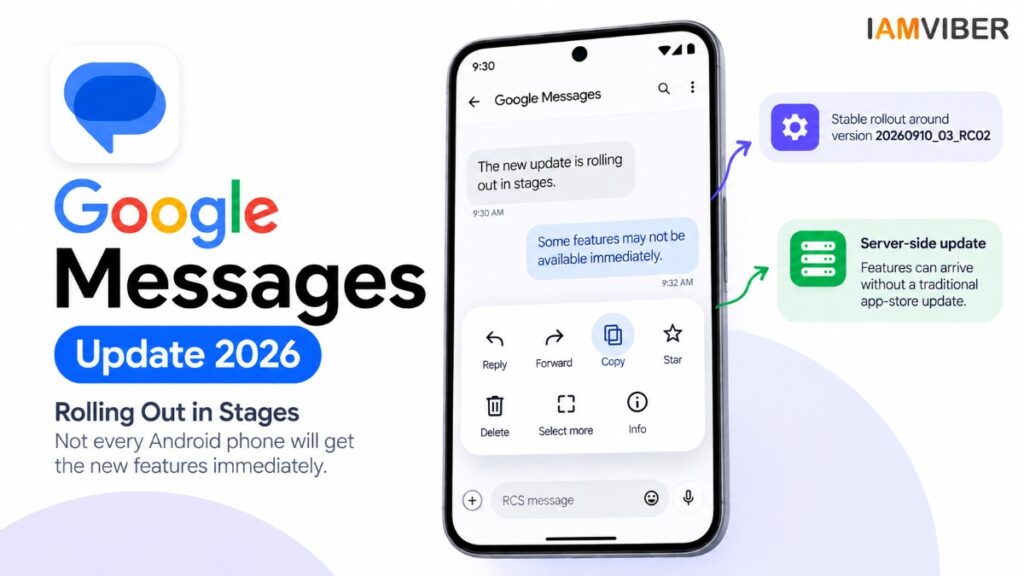
The latest rollout is arriving in stages, so not every Android phone will display the same interface immediately.
Google reported a wider stable rollout around version 20260910_03_RC02 and noted that a server-side component is involved. Android Authority likewise reported that the redesigned long-press experience is reaching stable users, meaning availability can arrive without a traditional app-store update appearing at the exact same moment for everyone.
If you do not see the changes yet, check that your messaging app is updated. Because some parts are server-side, however, the newest interface may still take time to appear.
The Google Messages update should therefore be understood as a rollout rather than a single switch that changes every Android device overnight.
Why Google Is Changing These Interactions
The design direction is easy to understand from the user-flow perspective. On large phones, reaching the top of the screen for message actions can be awkward. The redesigned floating menu brings frequently used controls closer to the selected message. Android Authority described the change as a more thumb-friendly approach.
The swipe controls also reduce friction. Replying is a frequent action, while timestamps and delivery or encryption details are useful when users need to check what happened to a message. Putting those actions behind simple gestures makes the conversation interface more contextual.
The Google Messages gestures also create a clearer division of actions. Rather than asking users to find every command in a toolbar or overflow menu, the interface gives specific gestures a defined purpose.
Is the New Copy Feature Useful for OTPs?
Yes, and Google’s own documentation gives a verification-code example. Google says users can copy specific parts of a message, including a one-time password. Its support page also explains that the quick-action system works across message types including text, images, videos, links, files, locations, and contact cards.
The practical benefit is simple: users can extract the information they need without copying unrelated text around it.
That can be especially useful for people handling verification codes, phone numbers, addresses, transaction references, tracking IDs and links inside busy conversations.
What Users Should Know About Rollout
The most important thing to remember is that feature availability is not necessarily universal on day one.
The new long-press menu was tested for months before reaching stable users, and reports indicate that the stable rollout is server-side. The swipe controls are also being distributed progressively. 9to5Google
That means two people using apparently similar phones can temporarily see different behavior. App version, account rollout, and Google’s server-side configuration can all affect what appears.
For anyone searching for the latest Google Messages update, this staggered rollout explains why screenshots and interface behavior can look different from one device to another.
Google Messages Update vs Older Interaction
The older interaction model placed more emphasis on long-pressing a message and using a toolbar for actions. Google’s redesign moves common controls into a floating menu and adds more precise copying.
The redesign therefore is less about adding a flashy standalone feature and more about changing how existing actions are accessed.
That distinction matters. Users may initially notice the change because a familiar menu looks different, but the underlying goal is quicker access to reply, copy, forward, star, delete, selection, and information controls.
Google Messages Gestures: What to Try
Once the rollout reaches your account, try the two primary swipe actions in a conversation.
Swipe right on a message to test the direct-reply interaction. Swipe left to check whether the newer metadata panel appears. Then long-press a text message and look for the redesigned floating action menu.
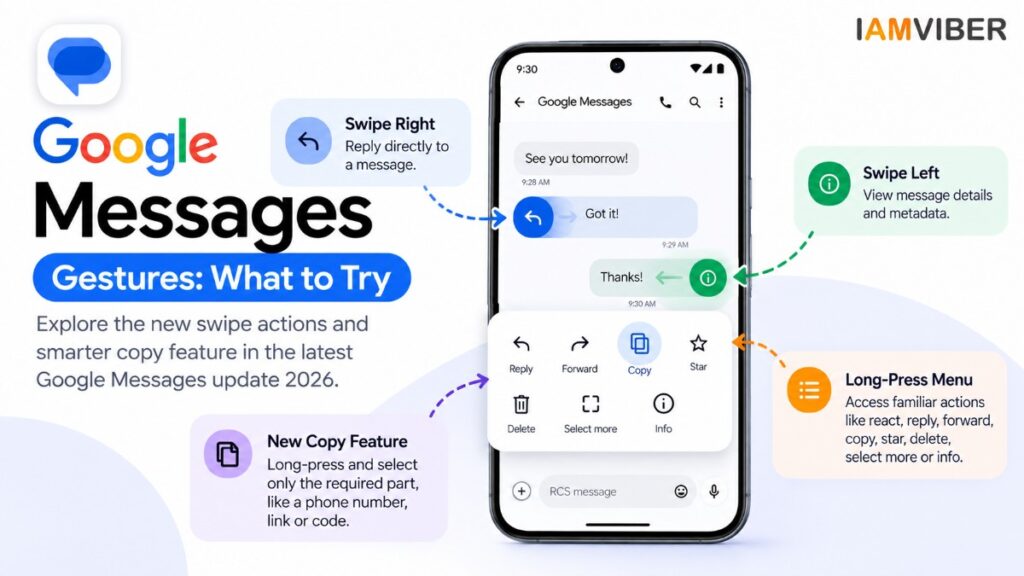
For the Google Messages new copy feature, try a message containing a phone number, web link, or code. Use the copy interaction to select only the relevant portion rather than the full message.
These are small changes, but they are precisely the kinds of interface updates that can become part of muscle memory after a few days.
What Has Not Changed
The core messaging experience remains familiar. Users can still long-press a message to react, reply, forward, copy, star, delete, select more, or open message information. Google’s support documentation lists these actions across supported message types, so the redesign is mainly about making familiar tools easier to reach. Google Help
Final Takeaway
This latest Google Messages change is a good example of how messaging apps are evolving through small, high-frequency improvements. Instead of radically changing how conversations work, Google is refining the actions people use most: replying, checking details, and copying information.
The Google Messages reply gesture changes make direct replies faster. The Google Messages new copy feature makes extracting useful text more precise. And the redesigned Google Messages gestures give everyday interactions a more direct, contextual feel.
For Android users, the main takeaway is simple: update the app, try the new interactions when they appear, and expect the rollout to arrive progressively.
As Google continues to refine Messages, these seemingly small interface changes could have a bigger effect on everyday messaging than a flashy new feature because they improve actions people repeat constantly.
Frequently Asked Questions
1. What is new in the Google Messages update 2026?
The latest update introduces a redesigned long-press menu, more convenient swipe controls, and selective text copying. The new menu brings actions such as Reply, Forward, Copy, Star, Delete, Select more and Info closer to the selected message.
2. What does swiping right do in Google Messages?
In the latest interface, swiping right on a message can be used to directly reply to that message.
3. What does swiping left do in Google Messages?
Swiping left can show message details such as timestamps and encryption information, with the redesigned interface making these details easier to access.
4. What is the new Google Messages copy feature?
The new copy feature allows users to select and copy only a specific part of a message instead of copying the entire message. 9to5Google
5. Can I copy an OTP from a Google Messages text?
Yes. Google specifically says users can select and copy specific information such as a phone number or a one-time password from a message.
6. How do I access the new Google Messages menu?
Open a conversation and touch and hold a message. A quick-action menu appears with options such as Reply, Forward, Copy, Star, Delete, Select more and Info. Google Help
7. Is the new Google Messages update available to everyone?
The rollout is happening progressively, and some features depend on server-side availability. The redesigned long-press menu has been reported on stable version 20260910_03_RC02.
8. Why am I not seeing the new Google Messages gestures?
The features may not have reached your account yet because Google is rolling them out progressively. Keeping the app updated can help, but server-side rollout can also determine when the new interface appears.
Topics to follow on IAMVIEBR : AI & Tech, Startup, AI Creative, Agentic AI, Current Affairs & Insights, Collaboration